
Remix — shaping a sound
Trim, filter, EQ, and control exactly how one sound plays, with instant live preview.
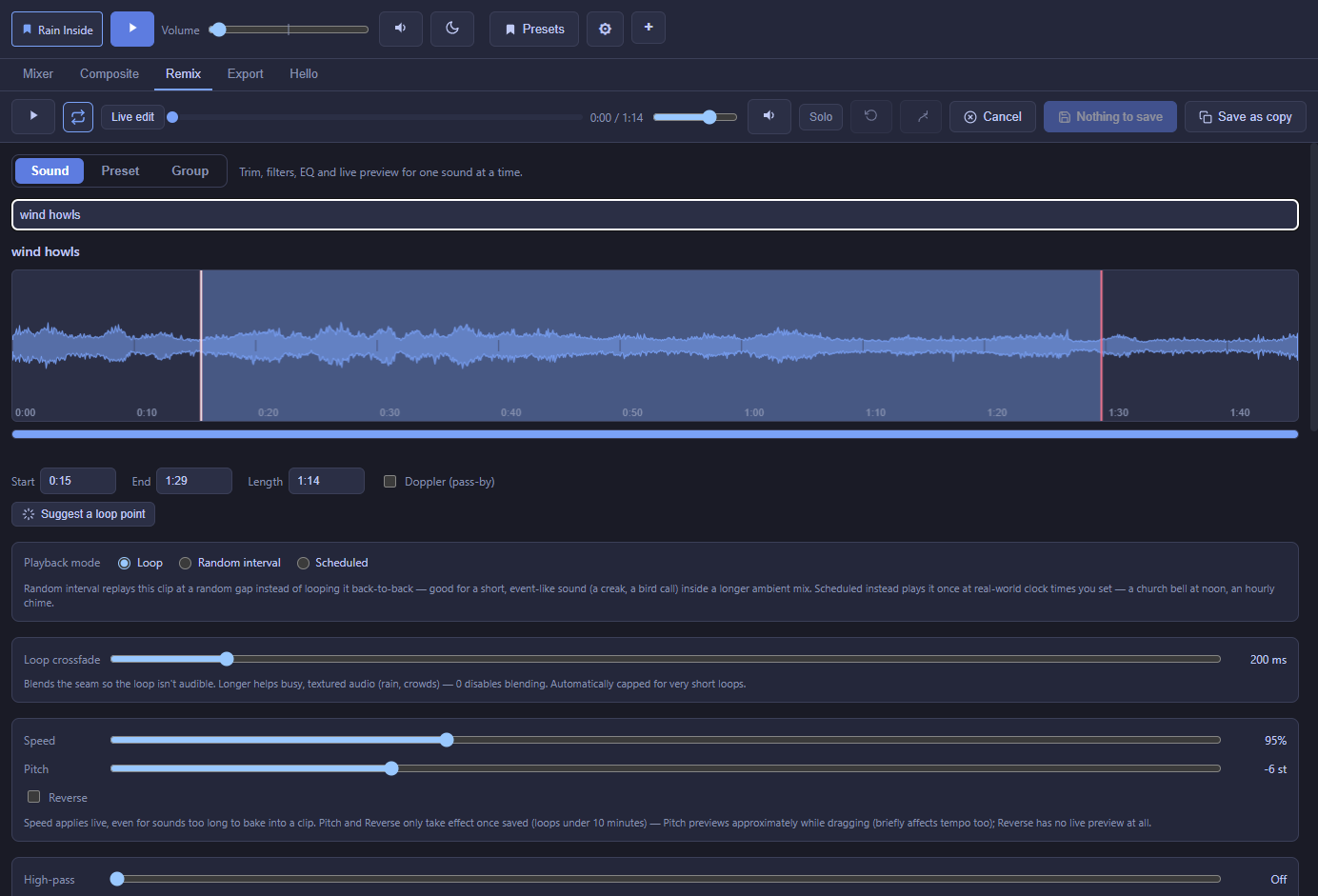
Open the Remix tab and pick a sound from the search box at the top (it stays pinned under the play controls as you scroll, and sounds in your mix have a yellow dot), or right-click a sound in the Mixer and choose Edit in Remix. Everything below applies to that one sound; changes preview live as you drag, and nothing is written to your original file — Remix always renders a separate working copy, so your source audio is untouched.
Trim and seamless looping
The waveform shows the whole file. Drag the Start/End handles (or type exact times/a length) to pick the region that loops. A Suggest a loop point button analyzes the file's energy and proposes a region that should loop cleanly on its own, which you can still fine-tune.
The Loop crossfade slider blends the tail of the loop into its head so the seam isn't audible — higher helps busy/textured audio like rain or crowds; 0 disables blending for content that's already a clean loop. The blend is equal-power, so noisy sounds don't dip in level mid-seam.
The Loop seam view
Above the crossfade slider, a Loop seam strip shows how the saved loop is laid out, the same way you'd build a seamless loop by hand in an audio editor: the second half of your trim, then the crossfade (both sides drawn with their fade curves), then the first half. The saved file starts and ends at the middle of your trim, so its restart is seamless without any blending; the only edit sits under the crossfade in the middle.
- Drag an edge of the crossfade zone to make it longer or shorter; double-click an edge to reset it.
- Click or drag anywhere else on the strip to jump playback there.
- Scroll to zoom in on the crossfade (or anywhere else in the loop), middle-click drag to pan, and double-click empty space to reset the zoom. Zooming in loads finer detail rather than stretching the same picture. Dragging the crossfade edges only works fully zoomed out; the Loop crossfade slider works at any zoom.
- Listen to the seam plays a few seconds either side of the joint, so you can check it without waiting for the whole loop.
Filters
Highpass / Lowpass / Gain
Cut low rumble (highpass), cut high hiss (lowpass), and adjust overall level (gain) — the three basics, always available.
Pan
A Pan slider under Gain moves the sound between the left and right speakers; double-click it to center. Loudness stays steady as you pan, and the setting applies in the live preview, in the Mixer, and in exports. Effect presets leave your pan alone; Reset filters centers it.
7-band parametric EQ
Seven bands, each independently one of eight filter shapes (peaking, low shelf, high shelf, low pass, high pass, band pass, notch, or off). Drag a node to set frequency/gain, scroll over it to adjust Q, or use the precise numeric fields. A background shows roughly where the sound's own energy sits, and a live spectrum analyzer shows what's actually playing while you preview.
Echo & Reverb
Independent, stackable effects — use either, both, or neither. Reverb is real convolution reverb (not a delay dressed up as one), with Size and Mix controls.
Noise gate
Quiets a sound whenever it drops below a threshold you set — useful for cutting a hissy or rumbly noise floor in the gaps between events on a self-recorded or otherwise noisy clip. Threshold, Reduction, Attack, and Release controls; off by default.
Noise reduction
For a steady background noise — tape hiss, mains hum, an air conditioner — that's present even under the sound you actually want (the noise gate only handles the quiet gaps, this handles noise that's there constantly). Mark a stretch of the trimmed loop that's noise-only via "Noise from"/"Noise to" (or the one-click "Noise sample from loop start" button), set a strength, and save — Noctívago measures that stretch and subtracts its noise profile from the whole clip.
Spectral repair
For a short sound hiding inside another one: a cough in the rain, a bird over the wind, a phone buzz. The Spectral repair panel under the EQ shows your trim as a spectrogram, with time across and pitch going up, so the unwanted sound shows up as a bright spot. Drag a box around it and just that box gets turned down (40 dB by default; change it with Reduce by). Everything outside the box, including the same pitches a moment earlier or later, stays as it was.
Drag a box to move it, drag its edge to resize it, and right-click it (or select it and press Delete) to remove it. Clear all removes every box. Needs Noctívago 0.1.237 and Remix 1.1.0 or newer.
Doppler (pass-by effect)
Simulates a sound passing by: pitch rises approaching a "closest point" you can drag on the waveform, then falls away after it, with a Sharpness control for how gradual vs. sudden the effect feels.
Speed, Pitch, Reverse
Speed changes tempo and pitch together (like a tape machine); Pitch shifts pitch alone without changing length or timing; Reverse plays the clip backwards. Speed applies live even to sounds too long to fully bake; Pitch and Reverse only take effect once saved.
Fluctuation — slow random drift
Makes a looping sound's volume, pitch, and/or pan wander slowly and randomly over time — wind gusting stronger and weaker, rain swelling and fading, a bird call drifting across the room — instead of sitting in one place forever. Each has its own bar with three handles: lowest, highest, and a typical value in between. Set how many seconds pass between new targets and how long each glide takes (0 means the change happens instantly).
- Bias (on by default) keeps the drift near the typical value most of the time, wandering to the extremes only now and then. Turn it off for an even spread across the whole range.
- Fully random ignores the handles and roams the whole range.
- Pitch drift works like a tape machine: a higher pitch also plays slightly faster, the same way in the Mixer and in exports.
- Pan drift starts from the sound's Pan slider position.
If the sound is in a Sound Group whose drift overrides its own, Remix shows a note saying so.
Random Interval & Scheduled details
Both non-loop playback modes (see the Mixer page for the overview) share fade in/out handles right on the waveform, with the Fade settings (and an on/off switch) right next to it; a sound's Sync group sits up by its name. Each time the sound plays, it can pick a new random pitch, volume, pan, and speed (50–200%). Each uses the same three-handle bar as Fluctuation, in its own box with its own Fully random and Bias toggles. Fully random pitch means the whole ±12 semitone range, ignoring the handles. A bar collapsed to a single value means no variation; drag a handle left or right to open it up. Random Interval's gap between plays has the same Fully random and Bias options.
Effect presets
One-click starting points for the filter section: Muffled, Over the Phone, On the Radio, Distant, Underwater, Echo, Reverb. They only touch the highpass/lowpass/gain/echo/reverb fields — your EQ, noise gate, noise reduction, and playback settings are left alone.
Undo, redo, and safety
Ctrl+Z / Ctrl+Shift+Z undo and redo your edits; a Cancel button discards everything since you opened the sound; leaving with unsaved changes prompts you first (with a "don't ask again" option). An A/B compare lets you snapshot the current EQ into a slot and flip back and forth while tuning.
Live edit vs. Saved audio
Most controls preview live as you drag. A few (Doppler, Reverse, Noise reduction, Spectral repair, and Pitch beyond a rough approximation) can't be previewed in real time. A toggle next to Play switches between Live edit and Saved audio, the actual file the Mixer plays. If nothing is saved yet, switching to Saved audio saves first. Saved audio loops gaplessly, exactly as it will in your mix, and you can keep saving while you listen to it.
What comes next
Sound Groups
The same filter/EQ tools, applied to several sounds sharing one bus instead of just one sound.
Export
Bake a whole mix — including every sound's Remix settings — down to one file.